On-Call Schedules & Escalation
Define who is on-call, set up rotation schedules, and configure multi-step escalation policies so the right people are always notified when incidents occur.
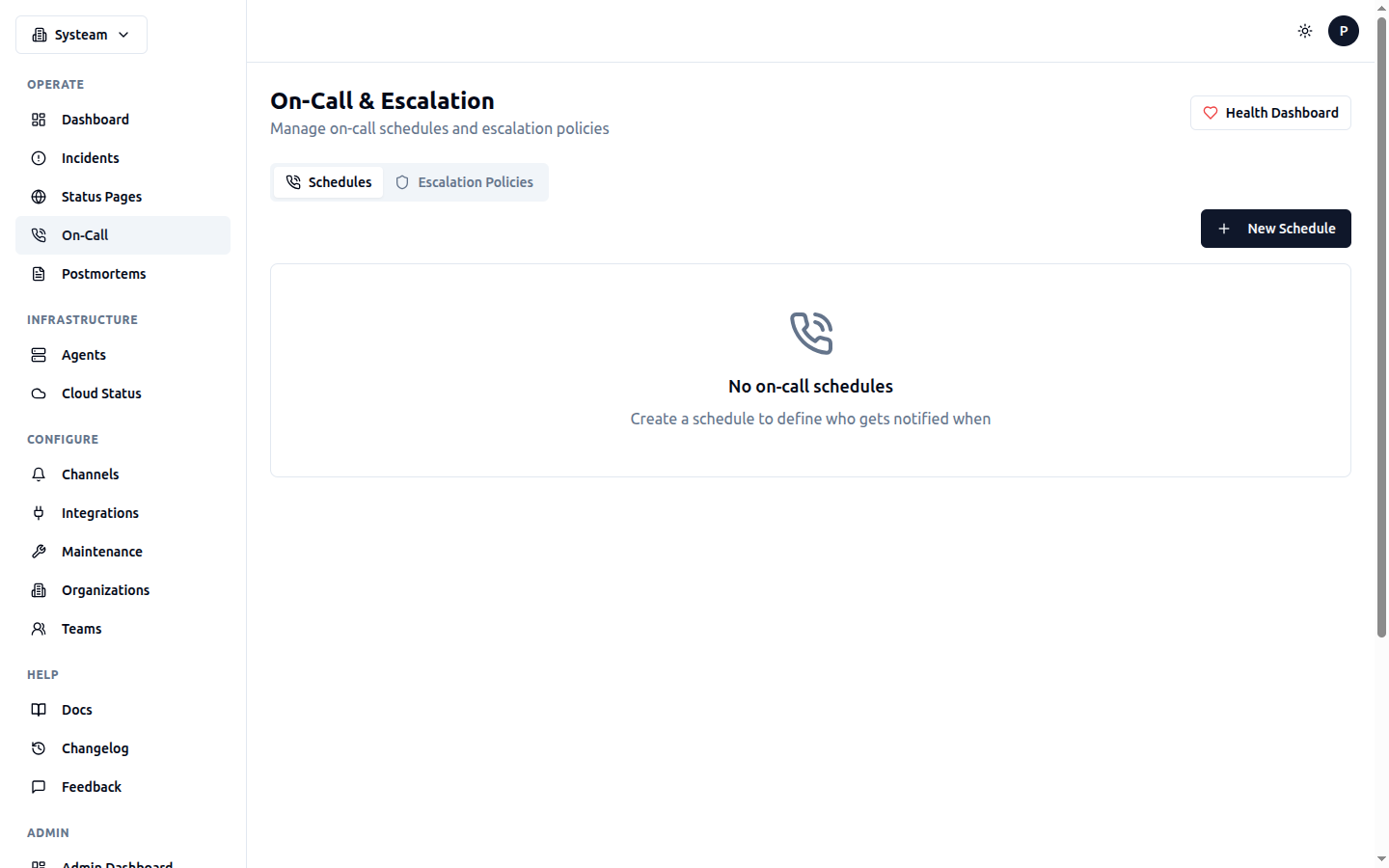
On-call schedules and escalation policy management
Overview
The on-call system consists of two core building blocks: On-Call Schedules (who is available when) and Escalation Policies (what to do when no one responds). Together, they ensure incidents never go unnoticed.
- On-Call Schedules — rotating roster of team members
- Escalation Policies — multi-step notification chains with timeouts
- Overrides — temporary coverage swaps (vacation, shift trades)
On-Call Schedules
Creating a Schedule
Navigate to On-Call > Schedules and click Create Schedule. Configure the following:
| Field | Description |
|---|---|
| Name | Display name for the schedule (e.g. "Backend Team") |
| Description | Optional description of what this schedule covers |
| Timezone | Timezone for rotation calculations (affects day boundaries) |
| Rotation Type | Daily or Weekly handoff |
Rotation Types
Daily rotation hands off on-call responsibility every day at midnight (in the schedule's timezone). Weekly rotation hands off every 7 days. The rotation position is calculated from the schedule creation date.
Participants
Add team members to the schedule. Each participant has a position in the rotation order. You can optionally configure:
- Time windows — restrict on-call hours (e.g. 09:00–18:00)
- Weekday filters — specific days of the week only
When time windows are configured, all participants' coverage is shown on the timeline rather than just the rotation winner, enabling follow-the-sun or split-shift setups.
Overrides
Overrides let you temporarily swap who is on-call for a specific time range. Useful for vacations, sick days, or shift trades. Overrides take priority over the regular rotation.
- Select the override user and a start/end time
- Add an optional reason (e.g. "Alice on vacation")
- The override appears as a separate layer on the schedule timeline
Schedule Layers (Follow-the-Sun)
For teams spanning multiple timezones, you can add layers to a schedule. Each layer has its own timezone, active hours, weekday restrictions, and rotation among its participants. Higher-priority layers override lower ones.
Example: A "24/7 Coverage" schedule with three layers:
- Layer 3 (P3): India team — 09:00–17:00 IST, Mon–Fri
- Layer 2 (P2): Poland team — 09:00–17:00 CET, Mon–Fri
- Layer 1 (P1): US team — 09:00–17:00 EST, Mon–Fri
The system evaluates layers top-down (highest priority first). If the current time matches a layer's timezone + hours + weekdays, that layer's rotation determines who is on-call. If no layer matches, it falls through to the schedule's default participants.
Tip
Handoff Notifications
When the on-call rotation changes (daily or weekly boundary, or override starts/ends), both the outgoing and incoming on-call person receive an email notification. The incoming notification includes the count of currently active incidents.
A "You" badge appears next to your name on the schedule list when you are the current on-call person.
Schedule Timeline
The visual timeline shows three layers:
- Rotation layer — calculated rotation slots
- Override layer — manual overrides overlaid on top
- Final schedule — merged result showing who is actually on-call
Escalation Policies
Creating a Policy
Navigate to On-Call > Escalation Policies and click Create Policy. A policy defines a sequence of notification steps.
Escalation Steps
Each step specifies who to notify and how long to wait before escalating to the next step if the incident isn't acknowledged.
| Field | Description |
|---|---|
| Target Type | User, Schedule, or Channel |
| Target | The specific user, on-call schedule, or notification channel |
| Delay (minutes) | How long to wait before escalating to the next step |
Schedule targets
How Escalation Works
- An incident occurs (check goes DOWN or inbound event triggers)
- Step 0 fires immediately — the first target is notified
- If the incident is not acknowledged within the step's delay, the next step fires
- This continues until all steps have fired or the incident is acknowledged/resolved
The system checks for unacknowledged incidents every 60 seconds and advances escalation steps as needed.
Assigning Policies to Checks
Edit a check and select an Escalation Policy in the Advanced section. When that check goes DOWN or DEGRADED and stays unacknowledged, the policy will fire.
Inbound Events
Escalation policies are also used for inbound events. Each integration key is linked to an escalation policy, which fires when external alerts trigger incidents.
War Room Auto-Creation
When an incident is not resolved quickly, the system can automatically create a War Room — a shared meeting space for incident responders. This feature is configured at the organization level.
Configuration
Go to Organization Settings > War Room Auto-Creation and enable the toggle. Configure:
| Setting | Description |
|---|---|
| Default Provider | Google Meet, Slack Huddle, Discord, MS Teams, or VS Code LiveShare |
| Auto-create Delay | Minutes after incident starts before creating the room (0 = immediate) |
| Notify On-Call | Send join link to on-call responders via their notification channel |
Google Meet auto-generation
How It Works
- An incident starts and escalation begins
- When the configured delay passes, a War Room is automatically created with a meeting URL
- On-call responders receive a notification with the join link
- As escalation advances to new steps, new targets are notified about the existing War Room
- When the incident resolves, auto-created War Rooms are automatically closed
Auto-created War Rooms display an Auto badge in the incident detail page. Manually created War Rooms are not auto-closed on resolution, so they can be used for post-incident discussion.
Warning
Team Context
On-call schedules and escalation policies can be assigned to a Team. This enables:
- Filtering the on-call page by team to see only relevant schedules and policies
- Clear ownership of who is responsible for what
- Team-specific escalation flows (e.g., DB team has different escalation than App team)
Multi-Team Example
- Schedule: db-oncall (3 DBAs, weekly rotation)
- Policy: db-escalation (DBA on-call → 10min → SRE lead)
- Schedule: sre-oncall (5 SREs, daily rotation)
- Policy: sre-escalation (on-call → 5min → SRE lead → 15min → VP Eng)
- Schedule: app-oncall (4 devs, weekly rotation)
- Policy: app-escalation (on-call → 10min → App lead)
Best Practices
- Start with 2–3 escalation steps — primary on-call, secondary, then a team channel
- Set reasonable delays (5–15 minutes per step) to give people time to respond
- Use schedule targets instead of individual users for more flexible coverage
- Enable War Room auto-creation for faster incident collaboration
- Create overrides in advance when team members go on vacation
- Use cover requests to let team members swap on-call shifts
- Assign schedules and policies to teams for organized ownership
- Set up inbound event integration keys with escalation policies for external alerts