Notifications
Configure multi-channel notifications to stay informed about your service status. SysTeam SysTeam HealthChecks supports 16 notification channel types.
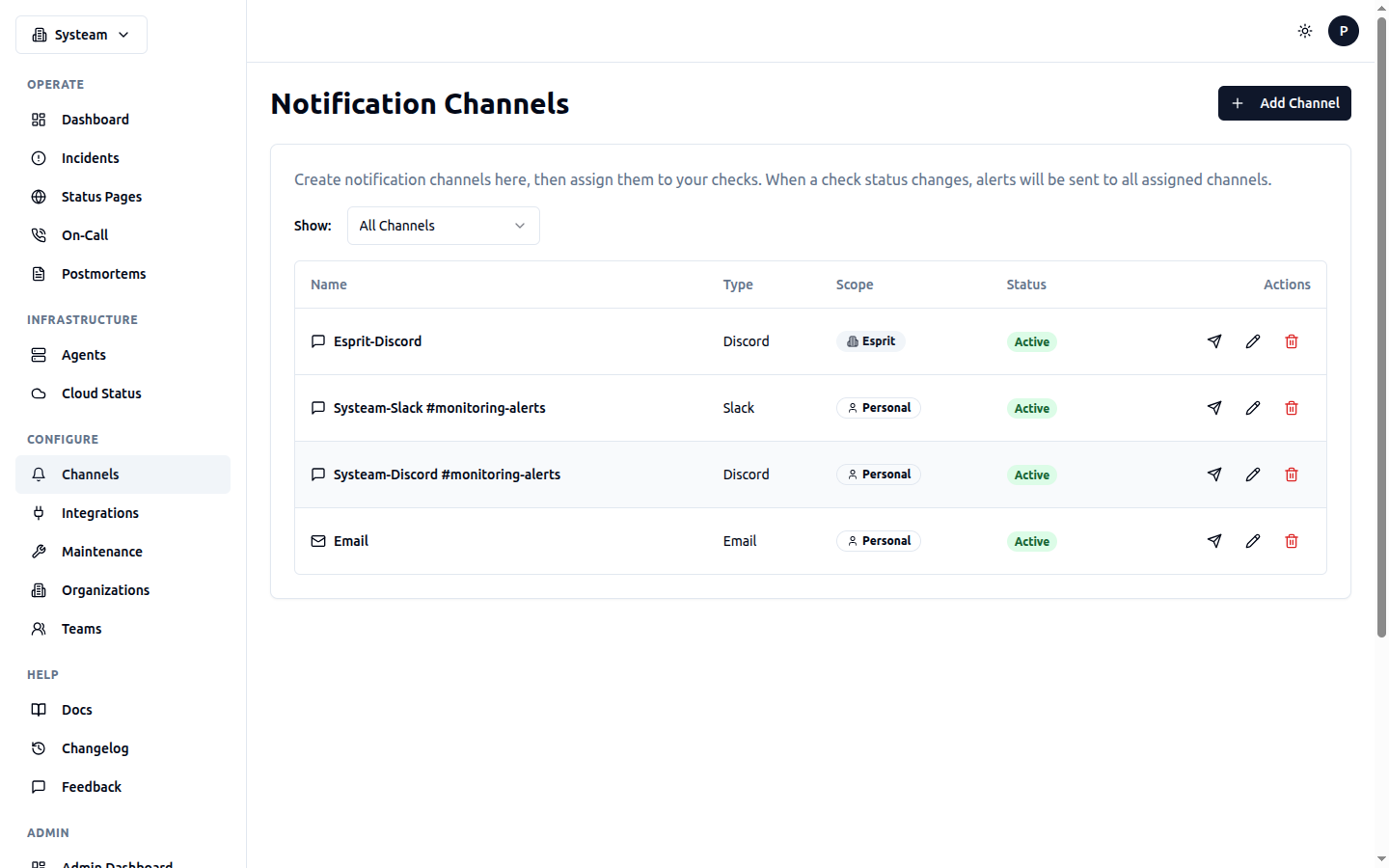
Manage notification channels for Slack, Discord, Email, and more
Supported Channels
| Channel | Configuration |
|---|---|
| SMTP server or system email | |
| Slack | Incoming webhook URL |
| Discord | Webhook URL |
| Microsoft Teams | Webhook (Workflows / Power Automate) |
| Telegram | Bot token + Chat ID |
| Webhook | Custom HTTP endpoint with HMAC signing |
| PagerDuty | Events API v2 integration key |
| OpsGenie | Alert API v2 key |
| Jira | Cloud instance URL + API token + project key |
| Meta Business Cloud API (access token + phone number ID) |
Email Notifications
Email notifications are sent with professional HTML templates including service status, response time, and incident details.
Email Configuration
System SMTP settings are configured by the administrator in the Settings page.
Slack Integration
Send alerts to Slack channels using incoming webhooks.
Setup Steps
- Go to your Slack workspace settings
- Navigate to Apps → Incoming Webhooks
- Create a new webhook for your alerts channel
- Copy the webhook URL
- Create a notification channel in HealthChecks with the webhook URL
Slack Configuration
Discord Integration
Send alerts to Discord channels using webhooks.
Setup Steps
- Go to your Discord server settings
- Navigate to Integrations → Webhooks
- Create a new webhook for your alerts channel
- Copy the webhook URL
Discord Configuration
Microsoft Teams Integration
Send alerts to Microsoft Teams channels using Workflows (Power Automate).
Setup Steps
- In Microsoft Teams, go to the channel where you want alerts
- Click the ... menu → Workflows
- Select "Post to a channel when a webhook request is received"
- Follow the wizard to create the workflow
- Copy the webhook URL provided at the end
- Create a notification channel in HealthChecks with the webhook URL
Microsoft Teams Configuration
Tip
Microsoft has deprecated the old "Incoming Webhook" connector. Use Workflows / Power Automateinstead. The new method uses Adaptive Cards for rich formatting.
Telegram Bot
Receive alerts via Telegram bot messages with rich HTML formatting.
Setup Steps
- Create a bot with @BotFather on Telegram
- Get your bot token
- Start a conversation with your bot or add it to a group
- Get the chat ID (use the
/getUpdatesAPI or @userinfobot)
Telegram Configuration
Custom Webhook
Send alerts to any HTTP endpoint for custom integrations.
Payload Format
{
  "check_name": "My Service",
  "check_status": "DOWN",
  "old_status": "UP",
  "timestamp": "2026-01-18T10:30:00Z",
  "response_time": 2500,
  "message": "Check 'My Service' changed status to DOWN"
}
Webhook Configuration
When a secret is configured, an X-Webhook-Signature header with an HMAC-SHA256 signature is included. See Webhook Security for verification examples.
PagerDuty Integration
Integrate with PagerDuty for incident management and on-call scheduling.
Setup Steps
- Go to PagerDuty → Services
- Create or select a service
- Add an Events API v2 integration
- Copy the integration/routing key
PagerDuty Configuration
When a check goes DOWN, a PagerDuty incident is triggered. When it recovers (UP), the incident is automatically resolved.
OpsGenie Integration
Send alerts to OpsGenie for on-call management and alert routing.
Setup Steps
- Go to OpsGenie → Settings → Integrations
- Add an API integration
- Copy the API key
OpsGenie Configuration
Jira Integration
Automatically create Jira issues when incidents occur.
Setup Steps
- Go to Atlassian → Account Settings → API Tokens
- Create a new API token
- Note your Jira Cloud instance URL (e.g.,
yourteam.atlassian.net) - Choose the project and issue type for incident tickets
Jira Configuration
WhatsApp Integration
Send alerts via WhatsApp using the Meta Business Cloud API.
Prerequisites
- A Meta Business account
- A WhatsApp Business API setup (via Meta Business Suite)
- An approved message template
Setup Steps
- Go to Meta Business Suite → WhatsApp → API Setup
- Get your Access Token (permanent token recommended)
- Get your Phone Number ID
- Add the recipient phone numbers
WhatsApp Configuration
Alert Types
You will receive notifications for these events:
| Event | Description |
|---|---|
| Status Change (DOWN) | Service went DOWN or DEGRADED |
| Resolved (UP) | Service recovered to UP status |
| SSL Expiry | Certificate expiring soon (30/14/3 days) |
| Domain Expiry | Domain registration expiring soon |
| DNS Hijacking | Unexpected IP address detected |
| SLO Burn Rate | Error budget consumption exceeds threshold |
Assigning Channels to Checks
After creating notification channels, assign them to specific checks:
- Go to a check's detail page
- Click Edit
- In the Notifications section, select the channels
- Save changes
Test Before You Need It
Use the Test button on each notification channel to verify it's configured correctly before relying on it for production alerts.
Notification Preferences
Each user can configure personal notification preferences from the Profile page:
- Email Digest — Summary of check activity: daily, weekly, or never
- Check Notifications — Alerts when checks go down or recover
- Security Alerts — New logins, password changes, suspicious activity
- Product Updates — New features and platform improvements
- Marketing — Tips, best practices, and promotional content
Quiet Hours
Organization admins can configure quiet hours to suppress notifications during off-hours (e.g., nights or weekends). Go to Organization Settings to enable.
- Checks continue running during quiet hours
- Incidents are still recorded and visible in the dashboard
- Notifications are suppressed, not lost
Plan-Gated Feature
Quiet hours is available on plans with this feature enabled. Check your organization's plan.
Channel Scope
Notification channels can be scoped to:
- Personal — Only visible to you. Use for personal alerts.
- Organization — Shared with all organization members. Use for team alerting.
You can change the scope of a channel by editing it in the Notifications page.