Incident Management
Track, acknowledge, investigate, and resolve incidents from a single timeline. Collaborate with War Rooms, write postmortems, and force-resolve stuck incidents.
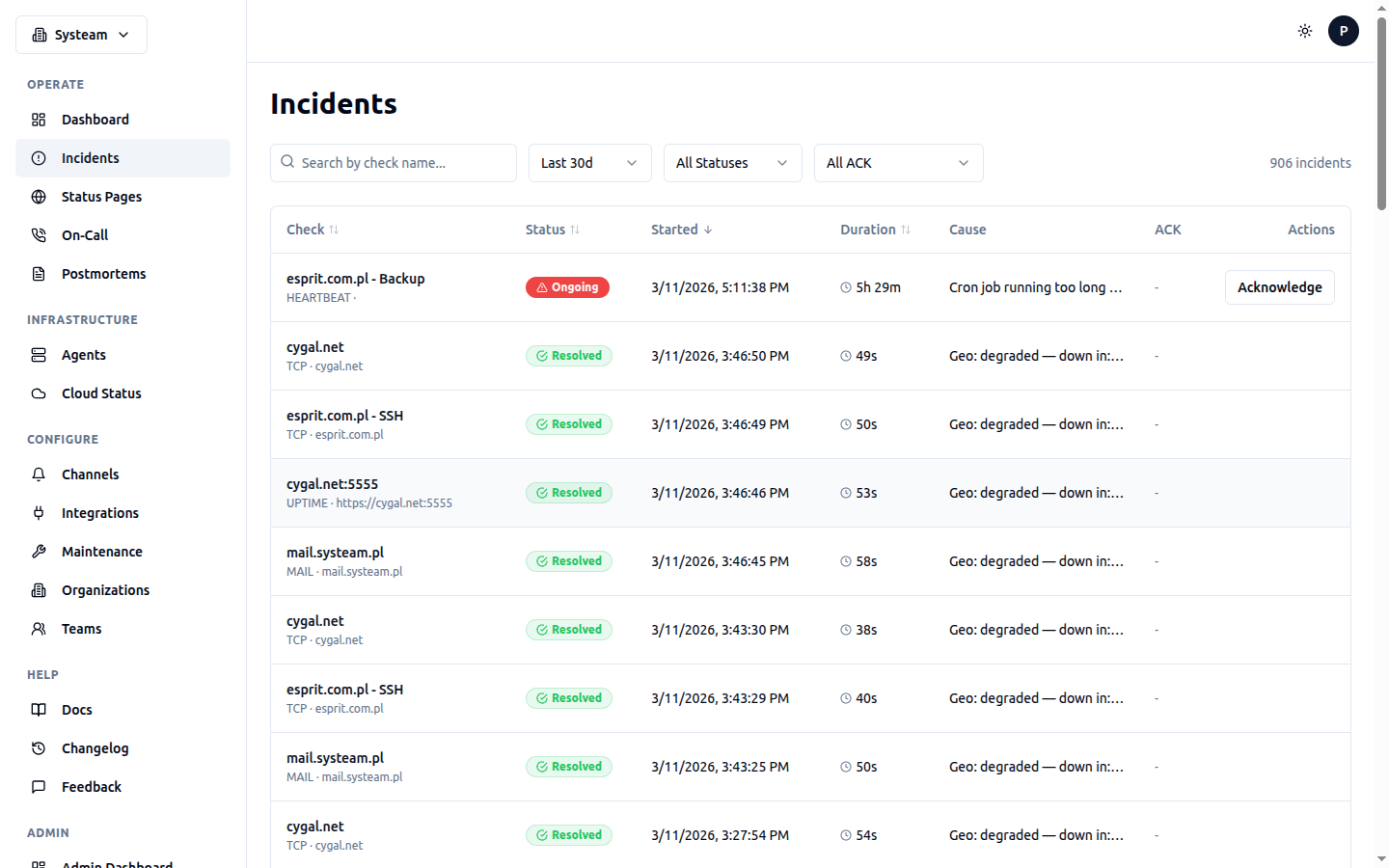
Incident list with status, duration, cause, and acknowledgment controls
Overview
An incident is created when a check transitions to a bad state (DOWN, DEGRADED, or LATE) or when an external alert triggers via the Inbound Events API. Incidents are the central object for tracking outages and coordinating response.
Two types of incidents exist:
- Check incidents — created automatically when a health check detects failure. Resolved automatically when the check recovers (goes UP).
- Inbound incidents — created via the Events API. Can be triggered, acknowledged, snoozed, and resolved via API actions or the UI.
Check Incidents
Check incidents appear in the Incident History panel on the check detail page. Click any incident to open its detail page with full context.
Incident Detail Page
The incident detail page has four tabs:
| Tab | Contents |
|---|---|
| Timeline | Chronological list of all incident activities (creation, escalation, ACK, resolution, notes, war rooms) |
| Notes | Free-text notes added by team members during investigation |
| War Room | Shared meeting spaces for real-time collaboration |
| Details | Check name, type, target, project, times, duration, cause, acknowledgments |
Acknowledgment (ACK)
Acknowledging an incident signals that someone is actively working on it. ACK has two effects:
- Stops escalation — no further escalation steps will fire
- Suppresses repeated notifications — only recovery notifications are sent after ACK (the initial failure alert is not repeated)
Incidents can be acknowledged in three ways:
- UI button — click Acknowledge on the incident detail page
- Notification link — ACK links are included in email, Slack, Discord, MS Teams, and Telegram notifications
- API —
POST /api/checks/{check_id}/incidents/{log_id}/ack
Tip
Force Resolve
Sometimes an incident needs to be closed manually even though the underlying check has not recovered. The Force Resolve button on the incident detail page does this.
Force resolving an incident:
- Stops any active escalation for this incident
- Closes all auto-created War Rooms
- Records a "force resolved" activity in the timeline
- Publishes an SSE event for real-time UI updates
Warning
War Rooms
War Rooms are shared meeting or chat spaces for coordinating incident response in real-time. They support 9 providers, 5 of which can auto-create rooms via API:
| Provider | Type | Auto-Create | Configuration |
|---|---|---|---|
| Jitsi Meet | Video | Yes (zero-config) | None — instant room generation |
| Slack Channel | Text | Yes (Bot API) | Slack Bot Token in org settings |
| Discord Text | Text | Yes (Bot API) | Discord Bot Token + Guild ID |
| Discord Voice | Voice | Yes (Bot API) | Discord Bot Token + Guild ID |
| MS Teams | Video | Yes (Graph API) | Tenant ID + Client ID + Secret |
| Google Meet | Video | No (“New Meet” button) | None — opens meet.google.com/new |
| Slack Huddle | Voice | No (paste URL) | Start huddle in Slack, share link |
| Zoom | Video | No (paste URL) | Paste meeting URL |
| VS Code LiveShare | Debug | No (paste URL) | Paste Live Share session URL |
Manual War Rooms
Click Start War Room in the War Room tab of any incident. Select a provider, enter a name and optionally a URL. For providers marked Auto-Create, the URL is generated automatically by the backend — no need to paste anything. For Jitsi, click Generate to create an instant room. For Google Meet, click New Meet to open a new room in a separate tab, then paste the URL back.
Auto-Created War Rooms
War Rooms can be created automatically when escalation fires. See On-Call > War Room Auto-Creation for setup. Auto-created rooms display an Auto badge and are automatically closed when the incident resolves.
War Room Members
War rooms have members who are participants in the incident response. When a war room is auto-created, on-call responders from the escalation policy are automatically added. You can manually add or remove members at any time.
If users have linked their platform accounts (Discord, Slack, MS Teams) in their Profile > Linked Platforms, they receive automatic invites to the platform room when added as war room members.
War Room Providers
Organization admins configure the default provider in Settings > War Room Auto-Creation:
| Provider | Setup Required | Notes |
|---|---|---|
| Jitsi Meet | None | Free, works instantly, auto-generates meeting URLs |
| Google Meet | None | Generates ad-hoc meeting links |
| Discord | Bot token + Guild ID | Creates voice/text channels in your Discord server |
| Slack | Bot token | Creates channels with channel management scopes |
| MS Teams | Tenant ID + Client ID + Secret | Creates online meetings via Azure AD app |
Use the Test Connection button to verify bot credentials before saving.
Closing War Rooms
Click the × button on an active War Room to close it. Auto-created rooms are also closed automatically on incident resolution. Manual War Rooms stay open until explicitly closed, which is useful for postmortem discussions.
Inbound Incidents
Inbound incidents are created via the Inbound Events API. They support additional actions beyond check incidents:
| Action | Description |
|---|---|
| Acknowledge | Mark as being worked on, stop escalation |
| Unacknowledge | Re-enable escalation if needed |
| Snooze | Temporarily suppress escalation for a set duration |
| Unsnooze | Resume escalation before snooze expires |
| Resolve | Close the incident |
| Set Priority | P1 (Critical) through P5 (Informational) |
Inbound incident detail pages have the same four tabs (Timeline, Notes, War Room, Details) plus an Events tab showing raw inbound events.
Postmortems
After an incident is resolved, you can create a Postmortem from the incident detail page. Click Create Postmortem to start.
A postmortem includes:
- Summary — what happened
- Impact — who was affected and how
- Root Cause — why it happened
- Action Items — checklist of follow-up tasks
- Timeline — auto-populated from incident activities
Postmortems have a Draft and Published status. Draft postmortems are only visible to org members. Published postmortems can be shared.
Managing Postmortems
Navigate to On-Call > Postmortems to view all postmortems across your organization. You can filter by status (Draft/Published) and search by title. From the incident detail page, click Create Postmortem to link a postmortem to a specific incident — the timeline tab auto-populates from incident activities.
Incident Priority
Inbound incidents can be assigned a priority level to help triage and prioritize response:
| Priority | Use Case |
|---|---|
| P1 — Critical | Complete service outage, immediate action required |
| P2 — High | Major degradation, user-facing impact |
| P3 — Medium | Partial impact, workaround available |
| P4 — Low | Minor issue, no immediate user impact |
| P5 — Informational | Advisory, no action needed |
Noise Reduction
Several features help reduce alert fatigue:
Flapping Detection
When a check rapidly toggles between UP and DOWN (more than 5 times in 10 minutes), the system marks it as flapping and suppresses repeated notifications until the status stabilizes. This prevents alert storms from unstable network connections or services that are bouncing.
Suppression Rules
Create rules to automatically suppress inbound events that match specific patterns. Go to Integrations > Suppression Rules to manage rules.
| Field | Description |
|---|---|
| Field | Which event field to match: summary, source, component, severity |
| Operator | contains, equals, or regex |
| Value | The pattern to match against (e.g., "test-", "staging") |
Suppressed events are logged but do not create incidents or trigger notifications. Use this for known non-actionable alerts from noisy monitoring systems.
Alert Grouping
Configure a time window on integration keys to merge rapid-fire alerts into a single incident. When grouping_type is set to time_window, events arriving within the window increment the alert_count on the parent incident instead of creating new ones.
Other Noise Reduction
- Alert-after-X-failures — only alert after consecutive failures exceed a threshold
- Quiet hours — suppress notifications during configured off-hours (see Organization Settings)
- Maintenance windows — suppress alerts during planned downtime (see Maintenance Windows)
Real-Time Updates
Incident state changes are pushed to all connected clients via Server-Sent Events (SSE). Events include:
incident.new— new incident startedincident.resolve— incident resolvedincident.ack— incident acknowledgedwarroom.created— War Room created (manual or auto)warroom.closed— War Room closed
The dashboard and incident detail pages update automatically when these events arrive, with a fallback polling interval of 30–60 seconds.
Best Practices
- Always acknowledge incidents promptly to stop unnecessary escalation
- Use War Rooms for high-severity incidents involving multiple responders
- Write postmortems for major incidents to prevent recurrence
- Configure flapping detection for checks with known intermittent issues
- Use Force Resolve sparingly — only when you're certain the incident is handled even though the check hasn't recovered
- Set up escalation policies to ensure someone always responds